Apple announced that AppStore Search ads will be available in more countries like France, Germany, Japan, Italy, Spain and South Korea.
Search Ads is an efficient and easy way to help people discover your app on the App Store for iPhone and iPad and the best way to grow business. Advertisers residing in the following countries and regions may use Search Ads to advertise on the App Store.
You can now create campaigns for apps on the App Store in France, Germany, Italy, Spain, Japan, and South Korea and goes live from the August 1st, 2018.
For the first ad campaign, Apple offers a free $100 USD credit.
For more details follow this link.
iPhone backup extractor :The best iPhone Backup Extractor software to extract photos, text messages, contacts, voice memos, note, WhatsApp, Viber and etc from iPhone/iPad backup.
Sunday, 29 July 2018

How to Fix My Photo Stream Option Missing or Not Available
How to Fix My Photo Stream Option Missing or Not Available
Before getting started, I want to let you know a thing. According to the Apple–
If you recently created your Apple ID, My Photo Stream might not be available. Use iCloud Photo Library to keep your photos and videos in iCloud.
So, If you are a new user, this feature may not be available for you temporarily. Still, You can follow these solutions to see if it brings the luck.
1. Remove the Restriction
If you got a supervised iPhone or iPad from your organization, the photo stream feature might not be available. Because Your organization may have disabled this feature. In this case, You can do the following things.
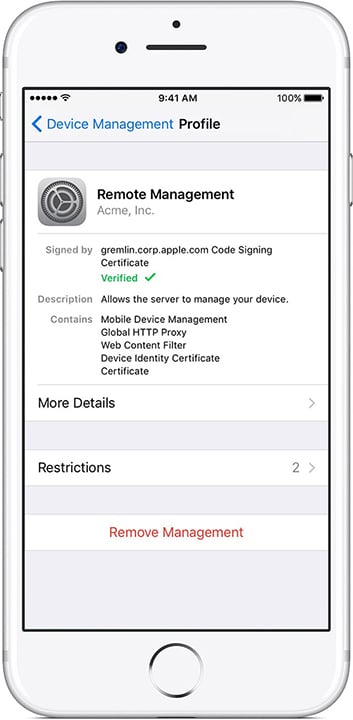
Image Source: Apple
First of all, You can go to Settings > General > Profiles & Device Management.
Now, Remove the profile and restart your Apple device.
If you can’t do the above procedure, You may have very little things to do. You can request the administrator to have the photostream feature.
2. Enable iCloud Photo Library
It’s weird but if you enable iCloud photo library, it may bring the photostream feature. I have no idea about it. But, I have seen this suggestion on various forums. To do it, follow these things.
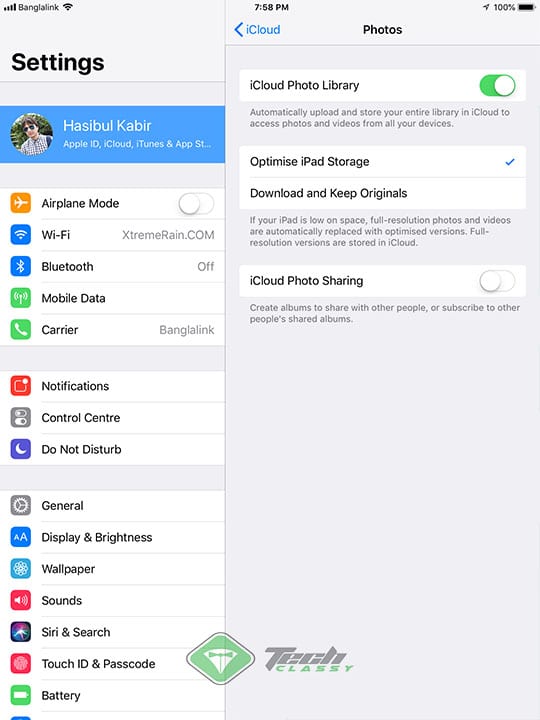
At first, Go to Settings.
Then, Tap on your Apple ID (Profile).
Now, Go to iCloud > Photos and tweak the switch next to the iCloud Photo Library to enable it.
3. Login with Different (Probably Old) Apple ID or Login into an Old iOS Device
This is another weird solution. As this problem is mainly encountered by the new Apple users with new Apple ID, you can use a different and old Apple ID and see if it helps. According to some random sources, “If someone has a new Apple ID and login into an iOS 11.2 or later device, photo stream feature may not be available for him/her.” In this can, you can login into an old iPhone or iPad and you may get the My Photo Stream. Once you have got this feature, you can login into the new device.iPhone backup extractor free:The best iPhone Backup Extractor software to extract photos, text messages, contacts, voice memos, note, WhatsApp, Viber and etc from iPhone/iPad backup.
Before getting started, I want to let you know a thing. According to the Apple–
If you recently created your Apple ID, My Photo Stream might not be available. Use iCloud Photo Library to keep your photos and videos in iCloud.
So, If you are a new user, this feature may not be available for you temporarily. Still, You can follow these solutions to see if it brings the luck.
1. Remove the Restriction
If you got a supervised iPhone or iPad from your organization, the photo stream feature might not be available. Because Your organization may have disabled this feature. In this case, You can do the following things.
Image Source: Apple
First of all, You can go to Settings > General > Profiles & Device Management.
Now, Remove the profile and restart your Apple device.
If you can’t do the above procedure, You may have very little things to do. You can request the administrator to have the photostream feature.
2. Enable iCloud Photo Library
It’s weird but if you enable iCloud photo library, it may bring the photostream feature. I have no idea about it. But, I have seen this suggestion on various forums. To do it, follow these things.
At first, Go to Settings.
Then, Tap on your Apple ID (Profile).
Now, Go to iCloud > Photos and tweak the switch next to the iCloud Photo Library to enable it.
3. Login with Different (Probably Old) Apple ID or Login into an Old iOS Device
This is another weird solution. As this problem is mainly encountered by the new Apple users with new Apple ID, you can use a different and old Apple ID and see if it helps. According to some random sources, “If someone has a new Apple ID and login into an iOS 11.2 or later device, photo stream feature may not be available for him/her.” In this can, you can login into an old iPhone or iPad and you may get the My Photo Stream. Once you have got this feature, you can login into the new device.iPhone backup extractor free:The best iPhone Backup Extractor software to extract photos, text messages, contacts, voice memos, note, WhatsApp, Viber and etc from iPhone/iPad backup.
Wednesday, 18 July 2018
How to Open Disabled iPhone/iPad via "Find My iPhone"
How to Open Disabled iPhone/iPad via "Find My iPhone"
The “Find My iPhone” app on iOS devices is responsible for the lock screen activation and is also responsible for helping you find your iPhone should it go missing.
One of the ways to open disabled iPhone/iPad is via the “Find My iPhone” app. Simply erase your device. Steps?
From another computer, go to icloud.com/#find.
Sign in with your iCloud Apple ID when prompted.
Select All Devices at the top.
Choose your disabled iPhone or iPad. (Can’t find the device you want to wipe off on the list?
Click on Erase iPhone (iPad or iPod touch) to remotely wipe off your disabled device and its passcode. Please ensure that the disabled device is connected to the internet.

Methods That Don’t Work
There are many methods prescribed online, but below are the ones that don’t work.
The make-a-fake-emergency-call method no longer works because the bug was fixed.
Accessing your iPhone's keychain directory using iExplorer, iPhone Browser, or SSH to delete the passcode file from on your jailbroken device no longer works.
“Find My iPhone” app does not allow you to set a new passcode lock or overwrite the old one. Also Read:Websites Like PrimeWire
Using Siri helps to get into iPhone when iPhone is locked instead of being disabled. Besides, it only works for some specific iOS version. Even if you are in the right version, this way doesn’t always work.Jihosoft iPhone Backup Extractor Extract and recover all types of data from iPhone backup files, such as camera roll photos, videos, SMS, contacts, reminders, WhatsApp, and etc.
Gihosoft Free iPhone Data Recovery is a professional iPhone Data Recovery software to get back all your lost text message, photo, video, call history, note, contact and more from iPhone/iPad/iPod Touch.
The “Find My iPhone” app on iOS devices is responsible for the lock screen activation and is also responsible for helping you find your iPhone should it go missing.
One of the ways to open disabled iPhone/iPad is via the “Find My iPhone” app. Simply erase your device. Steps?
From another computer, go to icloud.com/#find.
Sign in with your iCloud Apple ID when prompted.
Select All Devices at the top.
Choose your disabled iPhone or iPad. (Can’t find the device you want to wipe off on the list?
Click on Erase iPhone (iPad or iPod touch) to remotely wipe off your disabled device and its passcode. Please ensure that the disabled device is connected to the internet.
Methods That Don’t Work
There are many methods prescribed online, but below are the ones that don’t work.
The make-a-fake-emergency-call method no longer works because the bug was fixed.
Accessing your iPhone's keychain directory using iExplorer, iPhone Browser, or SSH to delete the passcode file from on your jailbroken device no longer works.
“Find My iPhone” app does not allow you to set a new passcode lock or overwrite the old one. Also Read:Websites Like PrimeWire
Using Siri helps to get into iPhone when iPhone is locked instead of being disabled. Besides, it only works for some specific iOS version. Even if you are in the right version, this way doesn’t always work.Jihosoft iPhone Backup Extractor Extract and recover all types of data from iPhone backup files, such as camera roll photos, videos, SMS, contacts, reminders, WhatsApp, and etc.
Gihosoft Free iPhone Data Recovery is a professional iPhone Data Recovery software to get back all your lost text message, photo, video, call history, note, contact and more from iPhone/iPad/iPod Touch.
How to install iOS 12 Beta 4 on iPhone or iPad without developer account
Apple releases iOS 12 beta 4 for registered developers for download for iPhone, iPad and iPod touch.
The iOS 12 beta comes with many bug fixes and improvements. Besides that Apple has added many new features in iOS 12 like Group Facetime, Memoji, new AR features, Photos improvement, group notifications, improved Siri, Measure app, updated stock app and more.
The iOS 12 developer beta 4 is currently available for download registered developer only. The registered developer can install this beta from the developer account or can directly update via OTA mechanism if they have already installed the previous beta from Settings >> General >> Software Update.
What’s new in iOS 12
If you’re not a developer then you can join the Apple Developer Program, which includes a signup fee of $100.
But is it possible to get the developer beta 4 of iOS 12 even without developer account?
Of Course Yes! You can easily install iOS 12 beta 4 profile on your iPhone, iPad and iPod Touch without Developer Account or Computer but we don’t recommend and try it at your own risk. There may be many bugs and issues in beta so better to wait for the final public version of iOS 12.
Simply follow this below steps how you can install and update to iOS 12 beta 4 right from your iPhone or iPad. For this, you don’t need developer account or any computer and it’s super easy.
Download iOS 12 beta 4 without developer account
Step 1: Launch Safari on your iPhone/iPad, and enter this URL.
Step 2: It will then redirect to iOS 12 beta profile management page. Tap to Slow download (Free) to install the developer profile on your device.
Step 3: After the profile is installed, you will be asked to restart your device. Tap on Restart.
How to install iOS 12 beta without developer account
Step 4: Now Go to Settings >> General >> Software Update. Tap Download and Install iOS 12 beta on your iPhone/iPad as normal like you update via OTA.
Step 5: Enter your passcode. Agree on the terms & Condition.
Step 6: Seat back and relax for sometimes until it completes downloading. Next Tap on install to get iOS 12 on your iPhone or iPad.
That’s it. You have now iOS 12 beta 4 installed on your iPhone/iPad without a developer account.
iOS 12 Compatible devices
So this is all guys! Hope you find it useful and don’t forget to share it with your friends too.Jihosoft iPhone Backup Extractor Extract and recover all types of data from iPhone backup files, such as camera roll photos, videos, SMS, contacts, reminders, WhatsApp, and etc.
Gihosoft Free iPhone Data Recovery is a professional iPhone Data Recovery software to get back all your lost text message, photo, video, call history, note, contact and more from iPhone/iPad/iPod Touch.
Monday, 16 July 2018
HOW SIRI SHORTCUTS WORK IN IOS 12
HOW SIRI SHORTCUTS WORK IN IOS 12
The new “shortcuts” feature in iOS 12 automatically monitors and suggests the tasks you perform on a regular basis. This is made possible through the use of the NSUserActivity API.
Once you enable a shortcut and automate it with Siri, you can invoke it simply by using a recorded command.
You can utilize iOS 12 automation in the following ways –
Using the default Shortcuts section in the Settings app. A standalone Shortcuts app is currently not a part of iOS 12 Beta 1.
Using the IFTTT-inspired Workflow app, which Apple acquired in 2017.

The default shortcuts are simple whereas Workflow is relatively powerful and lets you automate more advanced actions.
As soon as Siri detects your voice command, it dispatches a message to its server. The server then authenticates the command and then triggers it locally on your Apple device.
ENABLING SHORTCUTS IN SIRI
Step 1 Go to Settings > Siri & Search.
Step 2 The Shortcuts section will display a whole set of shortcuts that you can easily automate.
Step 3 Tap + icon present next to the shortcut you want to automate. I will use the very first Safari shortcut that opens Yalujailbreak.net in Safari web browser just for demonstration purposes.

Step 4 Press the red “record” button and add a voice command to Siri depending on the shortcut you have chosen to automate. For example, I simply used the phrase “Yalu jailbreak” and recorded it.If you accidentally deleted or lost videos on iPhone, first please check on the Recently Deleted folder. Alternatively, you can use the professional tool Gihosoft iPhone Recovery to recover deleted iPhone videos from Camera Roll or some apps.

Step 5 Press Done after you record the desired phrase.

Step 6 Invoke Siri by long-pressing the Home button and repeat the voice command you gave above. In my case, simply repeating the phrase “Yalu jailbreak” opened the website in Safari.

AUTOMATING WORKFLOW ACTIONS WITH SIRI
Workflow is Apple’s in-house automation app and comes with a slew of “workflows” that you can automate at the click of a button.
Workflows are nothing but a set of actions or events that this app allows you to automate. Here’s how you can automate them.
Step 1 Launch Workflow. If you don’t have this app installed on your device, head to the App Store and download it.

Step 2 Tap Create Workflow to create a new workflow. Alternatively, you can select any of the predefined workflows such as “Log Water” or “Photos to GIF”.
Step 3 Workflow will now suggest predefined actions that you automate individually or chain them with another actions to create a new workflow.

Step 4 Select any action from this list and drag it to the right to create a custom workflow. I will be using the following actions for my workflow –
Take Photo
Save to Photo Album
Share
Remember, each of these actions is fully customizable. For example, the “Take Photo” action can be set up to show camera preview, take multiple photos, use the front or rear camera.
You can also configure the album and the sharing method manually. Other actions, too, can be customized similarly.


Step 5 Tap the “play” icon given at the top of the display to execute the workflow. Essentially, this workflow clicks a selfie, saves it to camera roll, and then shares it.

Step 6 Once everything works like it’s supposed to, tap Done to create the workflow.
Step 7 Open the Settings app and navigate to Siri & Search and select the workflow you just created in the aforementioned steps.

Step 8 Record a voice command for Siri pertaining to this workflow.

Step 9 Invoke Siri and repeat the command you recorded in the above step. In my case, “take a selfie” automatically takes a selfie, saves it to camera roll, and shares it.
WHAT ARE YOU GOING TO AUTOMATE WITH SIRI?
As of now, this feature is still in early stages and, hopefully, will get even better in the upcoming firmware versions.
Apple intends to add a new “Shortcuts” app to the public release, which will make it more accessible and user-friendly.
Siri has still got a long way to go before it can claim to be a worthy competitor to Google Assistant.
Nevertheless, the introduction of automation of routine tasks is definitely a step in the right direction.
As always, don’t forget to leave your comments about Siri Shortcuts below.
For more iOS 12 tricks, follow us on Twitter and Facebook.
Subscribe to:
Comments (Atom)
How to Sync Movies to iPad with iTunes 2019
How to Sync Movies to iPad with iTunes Warning: Using iTunes to do this may delete the original movies that you have on your iPad. Howeve...

-
Best IPA Download Sites for iPhone and iPad Below are the top nine IPA download sites to do download and install apps on your jailbroke...
-
How to Sync Movies to iPad with iTunes Warning: Using iTunes to do this may delete the original movies that you have on your iPad. Howeve...
-
Apple releases iOS 12 beta 4 for registered developers for download for iPhone, iPad and iPod touch. The iOS 12 beta comes with many bug fix...

